Website Launch Checklist: What to Test Before You Go Live


Let’s be honest: there are already dozens of website launch checklists online. Wix has one with 50 items. Hostinger has 23. Digital Silk has 58. Most of them read like they were written by someone who’s never actually launched a site under pressure on a Tuesday afternoon with a client refreshing the page every thirty seconds.
I’ve launched over 550 websites in the last 13 years. I’ve seen everything from lorem ipsum left on homepages to a Muppet video (genuinely, a Muppet video) somehow surviving both our QA and the client’s sign-off and going live on an actual business website. That one still gets brought up in the office.
This is not another 50-item wall of tasks. It’s the checks that actually matter, in the order they matter, from someone who runs this process every week. I’ve grouped them by how much damage they’ll cause if you skip them.
How to Use This Checklist: What Actually Matters
Not every check on this list is equally important. Some will cost you leads and revenue if you miss them. Others are embarrassing but fixable. A few are just nice to have.
Here’s the priority breakdown:
| Severity | Check | What Happens If You Skip It |
|---|---|---|
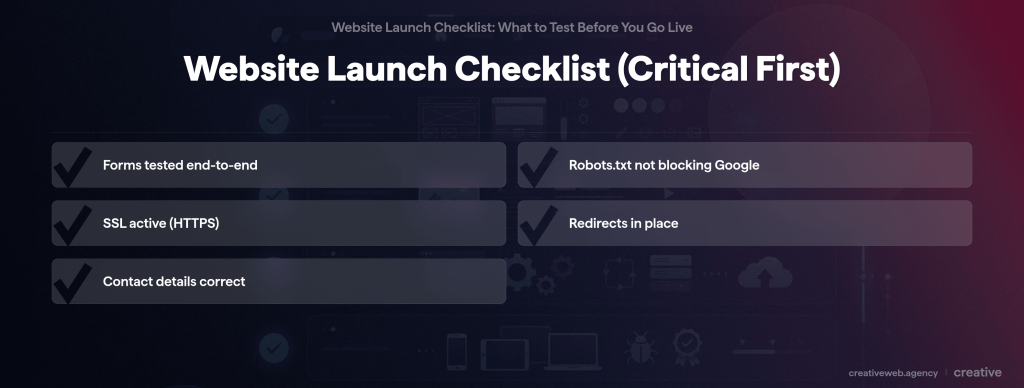
| SITE-BREAKING | Robots.txt still blocking Google | Your site is invisible to search engines. I’ve seen this make an international company completely disappear from Google. |
| SITE-BREAKING | Contact form back-end failing | Leads go nowhere. I’ve seen this go undetected for weeks while a client was spending thousands on marketing. |
| SITE-BREAKING | SSL certificate not valid | Visitors see “Not Secure” in their browser and leave immediately. |
| SITE-BREAKING | 301 redirects missing on relaunch | Every old URL returns a 404. Months of SEO work gone overnight. |
| SITE-BREAKING | SMTP credentials changed without testing | Form submissions silently stop arriving. Nobody notices until the phone stops ringing. |
| EMBARRASSING | Placeholder text on live pages | Lorem ipsum on your homepage. Or worse, a test video of a Muppet playing to your customers. |
| EMBARRASSING | Broken links on key pages | Visitors click a button and nothing happens. Looks unprofessional instantly. |
| EMBARRASSING | Mobile layout broken | Text overlapping, buttons you can’t tap, menus that don’t open. Over half your visitors are on phones. |
| EMBARRASSING | Wrong phone number or email | Leads go to the wrong place or nowhere at all. |
| EMBARRASSING | Missing favicon | That little icon in the browser tab. Without it, your site looks unfinished. |
| WORTH DOING | Image alt text on every image | Helps accessibility and SEO. Not urgent but good practice. |
| WORTH DOING | Social sharing meta tags | Controls how your site looks when shared on LinkedIn or Facebook. Worth setting up. |
| WORTH DOING | Custom 404 page | A branded error page instead of a generic server message. Helpful but not critical. |
| WORTH DOING | Page speed fully optimised | Faster is always better but a slightly slow page won’t lose you leads like a broken form will. |
| WORTH DOING | Analytics configured before launch | You want data from day one. But if you miss it by a day, you haven’t lost customers. |
Use this as your triage. If you have a tight deadline, work through the site-breaking items first. Everything else can follow.
Content and Copy Checks
So you’d think content mistakes would be obvious. They’re not.
The worst ones are the ones hiding on pages nobody checks: the confirmation page after a form submission, the footer on mobile, the image caption that still says “test caption here.” I’ve seen all of them on live sites.
Reading Every Page (Not Skimming)
I read every page of every site before it goes live. Not skim, read. Out loud if the copy is important (and it usually is). You’d be amazed what you catch when you actually read a sentence instead of scanning past it.
Check these specifically:
- Headings and page titles: are they correct, or did someone copy a heading from another page during development?
- Contact details: phone number, email address, physical address. Get one of these wrong and you’re losing leads to a dead end.
- Microcopy: form confirmation messages, error pages, login areas, cookie banner text. These are the pages nobody proofreads.
- Footer: it appears on every page. If something’s wrong there, it’s wrong everywhere.
Images, Alt Text, and Small Details
Every image needs alt text. It helps screen readers (accessibility) and it helps Google understand what the image shows (SEO). But it also catches a sneaky problem: missing images. If you’ve got a broken image with no alt text, a sighted visitor sees a broken icon and a screen reader user gets nothing.
Check your favicon too (the small icon in the browser tab). Without it your site looks like a placeholder. And set your og:image for social sharing: this controls what image appears when someone shares your page on LinkedIn or Facebook. Without it, the platform picks whatever it wants, and it’s usually wrong.
Forms, Links, and Functionality
If your contact form doesn’t work, nothing else on this checklist matters. This is where leads come from. This the section I spend the most time on.
Testing Every Form End to End
Submit every form on the site yourself. Then check your inbox. Then check your spam folder. Then check the confirmation email the visitor gets. Then do it again on your phone. If you want to be thorough and your site has payment processing, run a test transaction in sandbox mode, then one real transaction with your own card and refund it immediately to confirm the full live flow works.
That sounds excessive. It’s not.
Our rule now: don’t launch a site without contact form monitoring in place. On every site we host, we track form submission counts daily (not the data itself, just the numbers). If submissions drop or spike unexpectedly, we get an alert and investigate. This matters for spam and security just as much as it does for making sure leads come through.
We also started doing front-end capturing. Basically, if the back end fails for any reason, the front end still captures the submission (and partial submissions in some cases) so no leads are lost. We built this because I’ve seen what happens when it goes wrong.
I’ve seen clients spend thousands on Google Ads and then change the password to the SMTP server their contact form uses. Enquiries just stop arriving. Nobody notices. I’ve seen that go on for weeks. It’s genuinely one of the worst things that can happen to a small business website, and it’s completely silent.
Checking for Broken Links
Two approaches, depending on how thorough you want to be:
- Quick check (5 minutes): Dead Link Checker. Free, no signup, paste your URL and it scans.
- Thorough check (30 minutes): Screaming Frog SEO Spider. The free version crawls up to 500 URLs, which is more than enough for most small business sites. It finds broken internal links, broken external links, missing images, and redirect chains.
That last bit is key. Redirect chains (where page A redirects to B, and B redirects to C) are a real problem. I’ve seen people set up redirects on redirects until the whole thing collapses into a 500 internal server error. And nobody picks it up until months down the line, unless there’s an active SEO campaign or monitoring catching it.
Mobile and Browser Testing
Over 55% of UK web traffic is mobile (Ofcom Communications Market Report 2025). If your site doesn’t work properly on a phone, you’re immediately losing more than half your audience.
Testing on Real Devices
You need to test on real devices. Not just browser DevTools, not just resizing your browser window. Real devices.
The main culprit is Safari on Apple devices. Safari behaves very differently to the emulated versions. I’ve seen videos not play on Safari because the right content flag wasn’t set: it simply won’t stream without a specific content type header. That’s the kind of thing DevTools will never show you.
We use BrowserStack, which spins up real devices remotely. But even that has its limits: the real issue is how actual hardware processes animations and effects (which most sites have now). A smooth animation on a virtual device can stutter on a three-year-old iPhone. You won’t know until you test it.
Cross-Browser Compatibility
At minimum, test on Chrome, Safari, Firefox, and Edge. On desktop and on mobile. The things that actually break across browsers are usually CSS rendering issues (layouts shifting), form styling (inputs looking different), and navigation menus (dropdowns not working).
One thing most checklists miss: check which version of your domain resolves correctly. Is it www.yourdomain.co.uk or just yourdomain.co.uk? If you’ve launched on the wrong one, you’ve split your SEO authority between two versions of the same site. Easy to miss, awkward to fix after launch.
SEO Checks Before Launch
Ten minutes of SEO configuration can protect months of future organic traffic. If you want a professional to run through this properly, I’ve put together a full website audit service that covers all of it. But here are the essentials you can check yourself, ordered by severity.
The Robots.txt Check (Most Critical)
This is the single most important SEO check before launch.
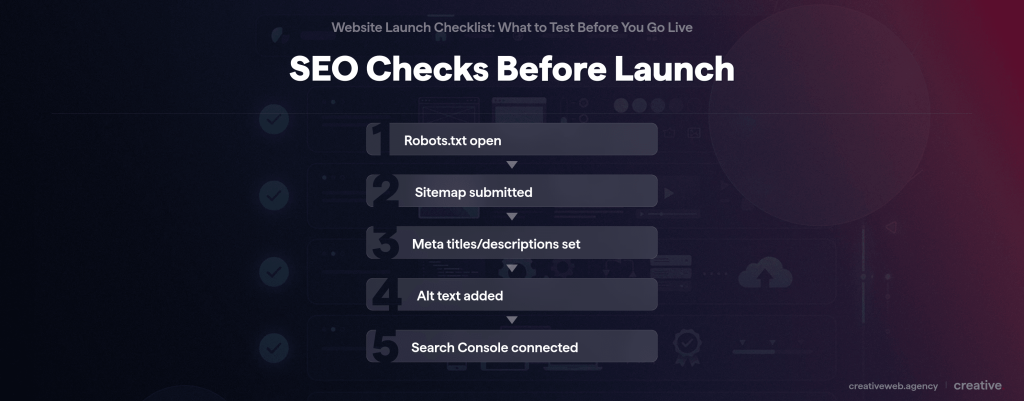
During development, most sites have a robots.txt file (or a meta tag) that tells Google: “don’t index this site.” It’s there so your half-built site doesn’t appear in search results. The problem is when nobody removes it before going live.
A big international company came to us once. Huge. “We can’t get our website working. It’s catastrophic. We’ve tried everything and we’re not showing on Google. Can you help?” I could have put together a big proposal for thousands of pounds. But the problem was simple: whoever launched their site had left “do not index” in their robots.txt. They removed it, re-indexed immediately, and were fine the same day.
One line of text. That was the entire problem.
If you’re using WordPress, also check Settings > Reading and make sure “Discourage search engines from indexing this site” is unchecked. It does basically the same thing.
301 Redirects for Relaunches
If you’re relaunching an existing site (not building from scratch), this is where most of the SEO damage happens.
My position: keep 301 redirects to a minimum. Every site we do goes through a discovery phase where we look at the existing URLs before we start building. We examine the format and structure, because if you pay for a theme-based site, you can end up with URL structures you can’t control, and that cripples your SEO.
The worst outcome is redirect chains. Page A redirects to B, B redirects to C, C redirects to D. Eventually the server gives up and throws a 500 internal server error. I’ve seen this happen and nobody picks it up for months.
Top tip: if you’re mapping old URLs to new ones, do it in a spreadsheet first. One column for old URL, one for new. Then implement them all at once and test every single one.
Meta Tags, Sitemap, and Search Console
Every page needs a unique meta title (under 60 characters) and meta description (under 155 characters). If you’re using Yoast or Rank Math on WordPress, these are easy to set per page.
Generate an XML sitemap (most SEO plugins do this automatically) and submit it to Google Search Console. If you’re not already using Search Console, set it up now: it’s free and it’s how Google tells you about problems with your site.
Check your alt text on images while you’re at it. Every image should have descriptive alt text: it helps both accessibility and SEO.
Speed and Performance
The Quick Performance Test
Run your homepage through PageSpeed Insights. It’s free, it’s Google’s own tool, and it gives you a score out of 100 for both mobile and desktop.
If your mobile score is below 50, the most likely fix is image compression. Oversized images are the number one reason small business websites load slowly. Convert to WebP format, compress them, and your score will jump.
You don’t need to understand what Core Web Vitals metrics stand for individually. The simple version: does your site load quickly, respond to clicks without delay, and stay stable while loading (nothing jumping around)? If yes, you’re fine.
Security, GDPR, and Legal Requirements
Right, this is the section most business owners skip because it feels like homework. But getting it wrong can mean a “Not Secure” warning in every visitor’s browser, an ICO investigation, or missing legal obligations you didn’t know you had.
None of the top-ranking launch checklists cover UK requirements properly. This section does.
SSL and the “Not Secure” Warning
If your site doesn’t have a valid SSL certificate, visitors see “Not Secure” next to your URL in Chrome, Firefox, and Safari. Most people leave immediately when they see that. It’s a site-breaking issue, not a nice-to-have.
Check that every page loads over HTTPS (not just the homepage). I’ve seen sites where the homepage shows the padlock but internal pages quietly load over HTTP. Your hosting provider should be able to fix this quickly.
Cookie Consent and GDPR (UK Requirements)
I’ll be honest: cookie consent is a pain. It’s also costly.
Under PECR (Privacy and Electronic Communications Regulations) and UK GDPR, you need explicit opt-in consent before setting any non-essential cookies. That includes Google Analytics. Pre-ticked boxes don’t count. Implied consent doesn’t count. The accept and reject options on your cookie banner need to be equally prominent (no hiding “reject” behind a settings menu).
We advise on cookie consent for every client, and we make sure it’s in place. But the cost and complexity of third-party cookie consent tools became a real problem. They add bloat to sites, they add complexity, they slow pages down, and they can be annoying to users. So we built our own cookie consent and tracking system. It introduces compliance in a way that’s as non-invasive as possible.
Whatever solution you use, test it. Load your site in an incognito window, decline cookies, and then check whether Google Analytics is still firing. If it is, your cookie consent isn’t working properly and you could be in breach of PECR. The ICO (Information Commissioner’s Office) is the regulator, and they do investigate complaints.
Company Details and Legal Pages
If you’re a UK limited company, the Companies Act 2006 requires you to display your company name, registered number, and registered office address on your website. If you’re VAT registered, add your VAT number too.
You also need:
- Privacy policy: what personal data you collect, why, how long you keep it, and who you share it with. Must be accessible from every page.
- Cookie policy: separate from your privacy policy. List every cookie your site uses, its purpose, and its duration.
- Terms and conditions: especially if you sell online.
These aren’t optional. They’re legal requirements for UK businesses.
Want a Website That Launches Without the Stress?
I run this checklist on every project I deliver. If you’d rather have someone handle the testing, the legal compliance, and the launch-day details, I can help.
Talk to Me About Your ProjectThe Go-Live Sequence
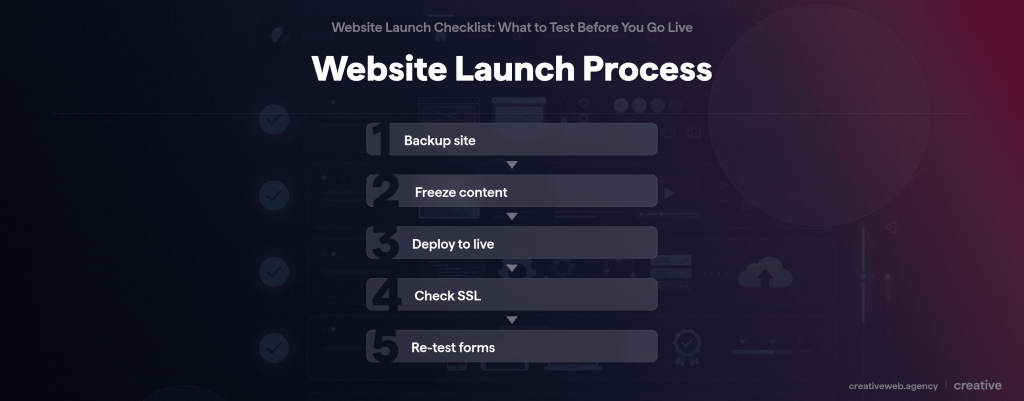
I could walk through our full launch process, but it’s about 50 steps and honestly that’s an article in itself. Here’s what actually matters on launch day.
Backup, Content Freeze, and Staging
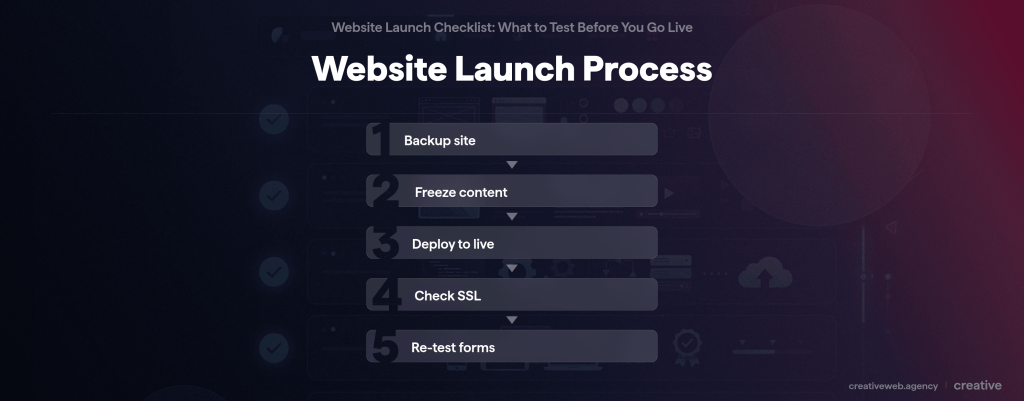
Before you touch anything: take a full backup. Not a partial one. Everything. Database, files, media. If something goes wrong during the switch, you need to be able to restore the site to exactly where it was.
Then: content freeze. No more changes from this point. Every change after the freeze is a risk that hasn’t been tested. I’ve seen last-minute “quick edits” break layouts, remove form actions, and overwrite SEO settings.
If you have a staging site, everything should be QA’d and ready to go there before you switch. The live server is not the place to discover problems.
DNS, SSL, and Timing
DNS propagation takes time. When you point your domain to a new server, it can take anywhere from a few minutes to 48 hours for every DNS server worldwide to update. Plan for this.
Not on a Friday. Not on a Monday. Fridays are obvious: if something breaks, you’re fixing it over the weekend (or worse, nobody notices until Monday). Mondays are busy: you want a clear day to monitor the launch, not one packed with meetings and other work. Tuesday, Wednesday, or Thursday. Everything QA’d and ready before you make the switch.
After Launch: The First 48 Hours
The site is live. The job is not done.
SSL, Forms, and Analytics
The most common thing that breaks in the first 48 hours is SSL.
When you switch DNS, the SSL certificate needs to repropagate and revalidate on the new server. It can be the difference between a one or two-minute outage during the switchover and hours of your site being offline because of a certificate issue. If you see the “Not Secure” warning after launch, contact your hosting provider immediately.
Re-test every form on the live server. Staging and production can behave differently (different mail servers, different SMTP configurations, different spam filters). A form that worked perfectly in staging might silently fail on the live site.
Check GA4 is recording real data. Open it, go to Real-Time, and verify you can see your own visit. If it’s empty, your tracking code didn’t make it across from staging or your cookie consent is blocking it.
Submit your XML sitemap to Google Search Console if you haven’t already. This tells Google your site exists and gives it a map of every page to crawl.
Monitor and Watch
Set up uptime monitoring. UptimeRobot is free and checks your site every 5 minutes. If it goes down, you get an email or text immediately. Simple.
Keep an eye on Search Console over the next week for crawl errors. Check your server error logs if you have access. And test social sharing: paste your URL into LinkedIn and Facebook and check the preview looks right (correct og:image, correct title, correct description).
If you have a Google Business Profile, update your website URL there too. Easy to forget.
Ready to Launch?
After 550 websites, the pattern is clear: the sites that launch smoothly are the ones where someone actually ran through the checks. Not skimmed them. Ran through them.
If anything in this list flagged a problem on your site, start with the site-breaking items. Those are the ones that cost money. Everything else you can tidy up in the first week.
And if you want a someone who’s done this 550 times to handle it for you: I’ve written about our website design process here: /website-design/.
Frequently Asked Questions
-
What is a website QA checklist?
-
It’s a structured list of things to check before your website goes live. QA stands for quality assurance, but honestly, most business owners just want to know: does everything work? That’s what this is. Forms, links, mobile layout, SEO basics, legal pages. The stuff that’ll embarrass you or cost you leads if it’s wrong.
Did this answer your question? YesThat’s great glad we could help! Start a ProjectNoNo problem, one of our experts can give you a more in-depth answer. Ask our Experts -
Do I need a staging site before I launch?
-
You don’t strictly need one, but it makes everything safer. A staging site is a copy of your site that isn’t visible to the public. You test everything there first, then switch it to live when it’s ready. Without staging, you’re testing on the live server, and if something breaks, your visitors see it. If you’re working with a developer, they should have staging set up already.
Did this answer your question? YesThat’s great glad we could help! Start a ProjectNoNo problem, one of our experts can give you a more in-depth answer. Ask our Experts -
What happens if I skip website testing before launch?
-
Honestly? You might get lucky and everything works. But the more likely outcome is that something breaks silently. A form that doesn’t send emails. A page that looks fine on your laptop but breaks on an iPhone. A robots.txt file that stops Google from ever finding you. I’ve seen all of these on sites that “looked fine” before they went live.
Did this answer your question? YesThat’s great glad we could help! Start a ProjectNoNo problem, one of our experts can give you a more in-depth answer. Ask our Experts -
How do I set up Google Analytics before launch?
-
Create a Google Analytics account (it’s free), set up a GA4 property for your domain, and add the tracking code to your site. If you’re on WordPress, a plugin like Site Kit handles this in a few clicks. The important part: verify it’s recording actual data before launch day. Go to Real-Time in GA4 and check you can see your own visit.
Did this answer your question? YesThat’s great glad we could help! Start a ProjectNoNo problem, one of our experts can give you a more in-depth answer. Ask our Experts -
Do I need an SSL certificate before launch?
-
Yes. No exceptions. Without SSL, your site loads over HTTP instead of HTTPS, and visitors see “Not Secure” in their browser bar. Most hosting providers include SSL for free now. If yours doesn’t, that’s a red flag about your hosting.
Did this answer your question? YesThat’s great glad we could help! Start a ProjectNoNo problem, one of our experts can give you a more in-depth answer. Ask our Experts -
How long does DNS propagation take when switching to a new website?
-
Anywhere from a few minutes to 48 hours, depending on the TTL (time to live) settings on your domain. Most of the time it’s done within a couple of hours, but plan for the possibility of it taking longer. During propagation, some visitors will see the old site and some will see the new one. That’s normal and it sorts itself out.
Did this answer your question? YesThat’s great glad we could help! Start a ProjectNoNo problem, one of our experts can give you a more in-depth answer. Ask our Experts -
What’s the difference between a pre-launch and post-launch checklist?
-
Pre-launch is everything you check before the site goes live: content, forms, mobile, SEO, security, legal. Post-launch is what you monitor in the first 48 hours after: SSL certificate propagation, forms working on the live server (not just staging), analytics recording real data, and uptime. Both matter, but the pre-launch checks prevent problems and the post-launch checks catch the ones that slip through.
Did this answer your question? YesThat’s great glad we could help! Start a ProjectNoNo problem, one of our experts can give you a more in-depth answer. Ask our Experts -
What are the most important WordPress-specific launch checks?
-
Three things that catch WordPress sites specifically: first, go to Settings > Reading and make sure “Discourage search engines from indexing this site” is unchecked. Second, delete or deactivate any plugins you’re not using (they’re security risks and they slow your site down). Third, check that your permalink structure is set to something readable (Post name, not Plain). These are the WordPress gotchas that trip up even experienced users.
Did this answer your question? YesThat’s great glad we could help! Start a ProjectNoNo problem, one of our experts can give you a more in-depth answer. Ask our Experts